

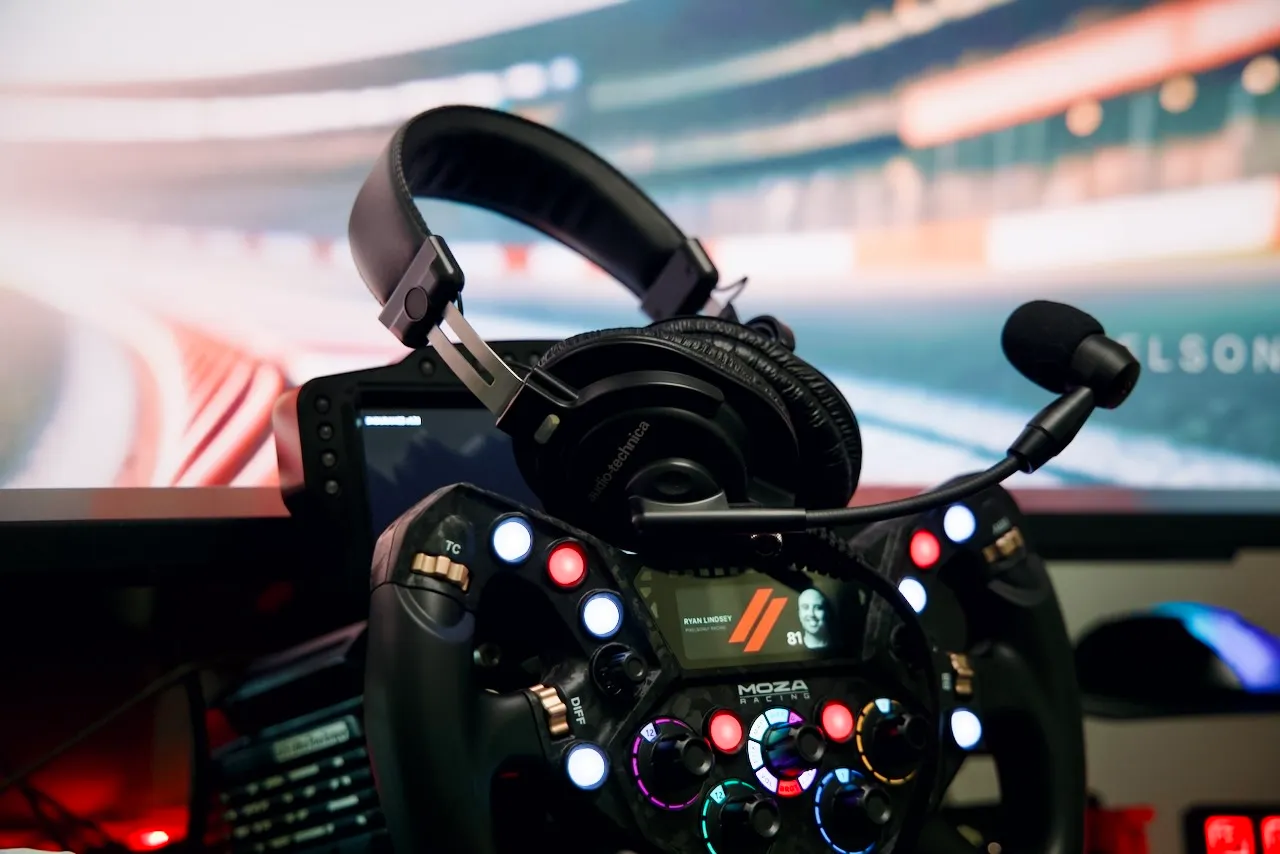
I spent an evening this month tuning audio instead of driving. Not speakers, not a new headset: the chain between iRacing’s audio engine and my ears. It was the same kind of session I would normally spend on force feedback, one change at a time, back out on track after each one. By the end of it I could hear the front tires start to scrub in a way I simply could not before, and I was catching lock-ups from the pitch change alone.
Most sim racers have tuned their force feedback for hours. Almost nobody tunes their audio. That is backwards, because a lot of the information you race on arrives through audio first.
Audio is telemetry, not ambience
Sound in a sim is not atmosphere. Every sound the sim plays is a data channel about the state of the car and the track around you:
| Sound | What it tells you |
|---|---|
| Tire scrub, rising in volume | Front grip is going away; you are past the slip peak |
| Pitch of the slip sound | Scrub (lower, broadband) vs. lock-up (higher, more tonal) |
| Spatial position of another engine | A car alongside, and which side, without looking |
| A car getting louder | A car getting closer; dynamics are information too |
| Kerb and rumble strip contact | Track limits, communicated at the moment of contact |
| Your own engine note | The rev range, so you shift without watching the dash |
There is a decent physiological case for taking the audio channel seriously. In simple reaction-time studies at rest, auditory stimuli produce faster responses than visual ones, roughly 140 to 170 milliseconds against roughly 180 to 250 milliseconds (auditory versus visual simple reaction times). That is a lab result on simple stimuli, not a lap time promise. It also does not make audio the fastest channel you have: touch is quicker still, which is the entire argument for bass shakers and for a well-tuned wheel. The claim here is narrower and, I think, harder to argue with. Audio beats the picture, and audio is the channel most of us have left switched off.
The endurance argument is the one I actually feel. Hour two of a stint, your eyes could be saturated and your hands might be tired. Your ears are still working, and they are still reporting.
If audio is an input, it deserves what your force feedback got: a deliberate tuning pass with a stated goal. The goal is information. Not immersion, not “cinematic,” not bass you can feel in your sternum. Information.
The audio chain has five layers, and each has one job
Between the sim and your ears there is a chain, whether you have thought about it or not. Naming the layers is what makes the tuning tractable:
- Source. The sim’s own audio engine and its mix sliders. iRacing renders the mix; leave its sliders close to flat and let a later layer do the separation work.
- Mixer and routing. Per-app channels with independent faders: the sim on one, the spotter or voice chat on another, Discord on a third. Balance between applications happens here and only here.
- Spatializer. Virtual surround for headphones. Plain stereo panning carries no front/back or elevation information, so positional audio on headphones depends on head-related transfer function (HRTF) processing, which is what a spatializer applies. Feed it a full surround bed and it has a whole scene to place; feed it stereo and it has two positions to work with.
- Correction EQ. Compensates for what your specific headphones get wrong. This is the layer most people skip entirely.
- Transducer. The headphones themselves. Every pair colors the sound, which is the reason the correction layer exists.
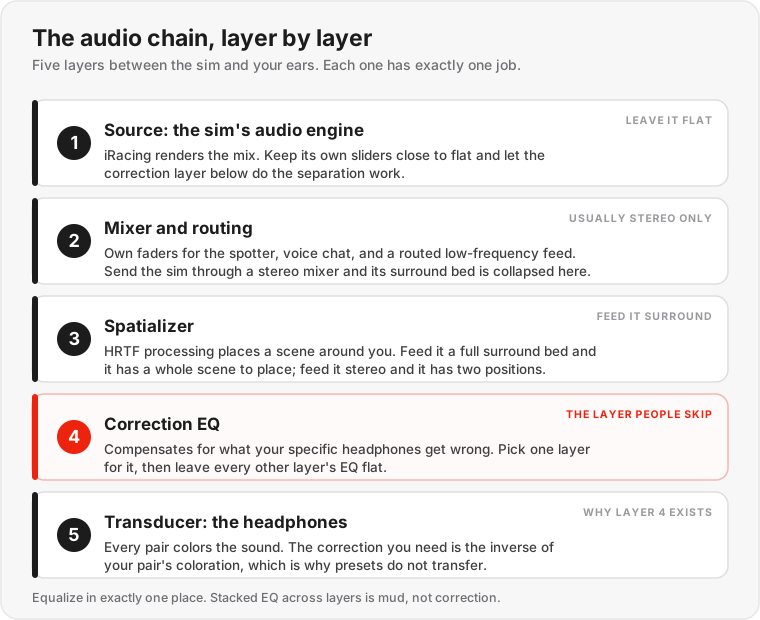
The single most important rule across the whole chain: equalize in exactly one place. The sim has tone controls, mixers have EQ, spatializer apps have EQ, headset suites have EQ. Use one. Stacking corrections across layers does not add up to a better correction, it adds up to mud, and you lose the ability to reason about what any single change did. Pick the layer where your correction EQ lives, and leave every other layer flat.
Layer 1: what iRacing gives you at the source
iRacing runs its audio on Microsoft XAudio2, which replaced DirectSound as the recommended engine in 2020 and was updated to XAudio2 version 2.9 in the 2023 Season 4 build (released 5 September 2023). Both engines are still selectable in the sound options; XAudio2 is the one to be on, and some newer audio features require it.
Two source-level settings matter for this piece.
Output dimensions, which you set in a text file. iRacing can output mono, stereo, or surround, and you want surround so the spatializer receives a multi-channel scene rather than a pre-folded stereo pair. Do not go hunting for this in the sound options screen. As of July 2026 I cannot find it there, and the guides that tell you to “select surround in the sim menu” are describing an older interface.
The setting lives in app.ini, in your Documents\iRacing\ folder, under the [Audio] section:
[Audio]
dimensions=3    ; 1 = mono, 2 = stereo, 3 = surround
Close the sim before you edit it. iRacing rewrites app.ini when it exits, so an edit made while the sim is running gets overwritten on the way out. Back the file up first, then change the value, save, and start the sim.
One prerequisite decides whether this actually takes: iRacing can only output as many channels as the Windows playback endpoint advertises. A plain headphone endpoint reports stereo, and asking for surround into a stereo endpoint gets you nothing. Enable your spatializer on the output device in Windows first, so the endpoint presents itself as a spatial target that accepts a multi-channel bed, and set dimensions afterward. If the value has reverted to 2 next time you look, that is the sim telling you the endpoint would not take the surround bed.
There is a routing trap attached to this setting, and it is the one thing in my own stack I had to think hardest about. Most per-app mixers present stereo virtual devices. Elgato Wave Link’s channel layout is stereo, and mono inputs are converted up to stereo rather than a surround bed being carried through. So if you send the sim through the mixer, the surround feed is collapsed to two channels before your spatializer ever sees it, and the setting you just enabled bought you nothing.
The resolution is to stop treating the mixer as the place everything must pass through. Send the sim directly to the spatialized output device, and use the mixer for the things that genuinely need their own faders: spotter, voice chat, Discord, and the low-frequency channel described below. You lose a game-volume fader in the mixer (the sim’s own master handles that) and you keep the surround scene intact. If your mixer does carry multichannel, route however you like; check its channel layout rather than assuming.
Ear protection and helmet effects. iRacing added selectable ear plug, earmuff, open-face helmet, and full helmet filters in that same 2023 Season 4 build. They require XAudio2 and apply only in the driver-perspective camera. These are worth understanding as what they are, covered in the realism section below.
Layer 4 in practice: tune the correction to your headphones, not to someone’s preset
This is the part that makes copied settings useless: the correction you need is the inverse of what your specific headphones get wrong. There is no universal “sim racing EQ.” There is your headphone’s character, and the EQ that undoes it.
Rough starting directions by headset type, which you then verify by ear:
| Your headphones | Common character | Correction direction |
|---|---|---|
| Bass-heavy gaming headset | Elevated low end, detail sitting behind it | Cut the low-mids so tire audio is not buried under engine drone |
| Broadcast or voice-tuned headset | Mids forward, top end comparatively reserved | Restore the highs: air, wind noise, brake and slip detail live up there |
| Open-back audiophile cans | Usually the flattest of the three, but it varies enormously by model | Check a measurement for your exact pair rather than assuming neutral; some want a touch of bass back |
The low-mid cut has real acoustics behind it, and it runs in one direction only. In simultaneous masking, a loud low-frequency sound masks higher-frequency sounds far more effectively than the reverse, and that upward spread widens as the masker gets louder (Oxenham et al., 2005; overview of simultaneous masking). Real-world tire and road noise concentrates in a broad peak around 700 to 1300 Hz (the multi-coincidence peak in tyre/road noise spectra). Engine fundamentals and their low harmonics sit well below that, in exactly the position to mask upward into it. So when your tire audio feels absent, the fix is usually not “more tire volume.” It is less of what is sitting on top of it.
Then verify on track, against a checklist. Mine:
- Can I hear tire scrub under trail braking, distinctly, under the engine?
- Does the spotter cut through cleanly at full throttle on a straight?
- Can I place a car alongside, left or right, without looking at the relative box?
- Does kerb contact arrive as a sharp event, or a vague rumble?
If the answer to any of those is no, that is what the next adjustment is for. One band at a time, one change per test, at a track you know well. The same kaizen loop that works for force feedback, and the same loop I used for frametime consistency, transfers directly.
Kill the processing that eats information
Two categories of processing do more damage to audio-as-telemetry than any EQ mistake.
Volume levelers and loudness compression. Windows Loudness Equalization and the various “volume leveler” and “smart volume” toggles in headset and spatial audio suites are dynamic range compression: they make quiet sounds louder and loud sounds quieter. Those loudness differences are precisely the information you race with. The car behind getting louder is your overtake warning. Tire noise swelling under braking is your grip gauge. Flatten the dynamics and you have deleted both. Turn levelers off for driving. They are genuinely useful for late-night replay watching and content editing, which is why they exist.
The trap is that levelers hide in more than one layer, so audit all of them. Windows has one under the audio device’s enhancements. Headset suites ship their own. Dolby Access includes a Volume Leveler inside its custom profiles, which means it can be switched on in the very tool you installed for spatial fidelity.
Stereo output into a spatializer. Covered above at the source layer, and worth repeating here because it is the other default that quietly costs you information: set the sim to surround, and let the spatializer do the folding down to two ears.
The bonus channel: route the sim’s bass-shaker output into your headphone mix
Routing iRacing’s low-frequency output through a virtual audio cable is a known trick, usually used to drive wheel-based or haptic effects from it. Sending it to a headphone channel is the variation I have not seen written up, and it is the single change that did the most for my own driving.
iRacing has a native low-frequency effects (LFE) system intended for bass shakers bolted to your rig, and the important detail is that it can be assigned to its own separate audio output device. You also choose which physical effects appear in that mix and at what level, each with its own decibel slider: engine RPM, gear change, wheel slip, road texture, rumble strips, rev limiter, and car body acceleration, plus a global level control for the whole LFE output.
If you do not own shakers, that output usually goes unused. Instead, point it at a virtual audio device, pick it up in your mixer as one more channel, and you have a dedicated “feel” fader sitting alongside your game audio, in your headphones, with its own volume control.
The tuning that makes it work: prioritize transients, bury the drone. Wheel slip, gear changes, rumble strips, and car body acceleration go high in the LFE mix; engine RPM and road texture go low or off. A constant signal carries no new information. A transient one is nothing but information. Tuned this way, wheel slip arrives as a distinct bass pulse underneath the regular audio, and it is the fastest lock-up and wheelspin warning I have found in years of chasing this stuff.
One caveat on scope: iRacing’s native LFE is a single channel, built for straightforward single-shaker setups. If you want per-corner effects on a multi-shaker rig, SimHub’s ShakeIt is the tool people use instead. It synthesises its own effects from telemetry rather than taking the sim’s audio, drives up to eight channels per interface (fewer over optical), and can feed a virtual device the same way. I have not migrated my own rig to it, so treat what follows as the research I did before deciding not to, rather than as a walkthrough.
Three things are worth knowing before you assume ShakeIt is the upgrade path for the trick in this section.
Per-corner is only as real as the telemetry underneath it. iRacing does not publish per-wheel slip, so SimHub estimates slip from the ratio of engine RPM to ground speed. That is a driven-wheel calculation, which means the four wheel-slip channels are derived from one estimate rather than from four independent measurements. SimHub’s author has described a lateral component that keeps them from being literally identical, but they are not per-corner data in the sense a four-channel layout implies, and the request to expose per-wheel iRacing slip was closed on the tracker as a game limitation.
Effects built on telemetry iRacing does publish per corner are a different story: shock deflection and shock velocity are reported for each wheel individually, so effects derived from them have real directional data underneath. Slip does not. If slip is the channel you care about, and in this article it is, that distinction is the whole decision.
None of that spatial detail survives into headphones anyway. This is the part that decided it for me. Wave Link channels are stereo, low-frequency content localises poorly by ear, and physical shakers do their positional work by vibrating different parts of your body rather than by being heard. Left and right might carry a hint. Front and rear will not. Per-corner is a shaker feature, and the headphone feel channel should stay a deliberately mono or lightly panned transient mix regardless of what generates it.
If you do run both, use two outputs rather than one downmix. ShakeIt can drive the physical interface with the four-channel map and a virtual cable as a separate output with its own effect selection and gain, which is cleaner than folding a corner bed down to two channels. Budget an evening for the audio plumbing, and know that virtual mixers can seize a device in exclusive mode and stop ShakeIt reaching it at all, so turn off “Allow applications to take exclusive control” on the devices involved.
Realism effects layer on top, not instead
Helmet effects, ear protection filters, and cockpit muffling are deliberate coloration of the sim’s output: they make the audio less accurate on purpose, in exchange for immersion. That is a legitimate choice, and it does not conflict with anything above as long as the order of operations stays straight. Correction EQ fixes your headphones so you hear what the sim actually rendered. Realism effects change what the sim renders. Fix the reproduction first, then color the source to taste. What you should not do is reach for correction EQ to compensate for a helmet filter, or stack a “clarity” preset on top of a muffling filter and expect either to behave predictably.
Worth knowing that this is not an iRacing quirk. Assetto Corsa Competizione’s interior and helmet camera audio is muffled relative to the exterior cameras by design, which drivers discuss regularly. Every sim makes some version of this trade.
The worked example: my stack, and what replaces each piece for free
My chain, layer by layer. This is not a shopping list. Every layer has a free or built-in alternative, and the method transfers to all of them. Prices are as of July 2026 and worth checking before you buy anything.
| Layer | My setup | Alternatives |
|---|---|---|
| Sim | iRacing, XAudio2, surround output, sent straight to the spatialized device | Assetto Corsa Competizione, Le Mans Ultimate, and rFactor 2 all expose audio device and mix settings, though iRacing’s are unusually deep |
| Mixer / routing | Elgato Wave Link (free), carrying voice, spotter, and the LFE channel | Voicemeeter (donationware), SteelSeries Sonar (free), Windows per-app output routing (built in) |
| Spatializer | Dolby Atmos for Headphones (about $15, one time) | Windows Sonic for Headphones (free, built into Windows), DTS Headphone:X via DTS Sound Unbound (about $20) |
| Correction EQ | Dolby Access custom EQ | Equalizer APO with the Peace GUI (free), or your mixer’s channel EQ |
| Headphones | Audio-Technica BPHS1 broadcast headset | Whatever you own; the method is the point |
| Extra | iRacing’s LFE output routed to a dedicated Wave Link channel | Any virtual audio cable feeding any mixer channel |
A few notes on the alternatives, because “free” here does not mean “worse.”
Elgato Wave Link is free, does per-app routing into named channels, and no longer requires an Elgato microphone or interface to use, which historically it did. Version 2.x is the current stable release; a rebuilt 3.0 has been in public beta through 2026.
SteelSeries Sonar is free, works without SteelSeries hardware, splits audio into game, chat, media, aux, and mic streams, and includes a parametric EQ per channel. For someone who wants the whole chain in one free app, it is the shortest path.
Voicemeeter (Banana and Potato) is donationware and extremely capable, but its routing model is different: you point applications at its virtual input devices using Windows per-app output selection, rather than assigning them inside a routing table.
Equalizer APO with the Peace GUI is the strongest free answer to the correction layer specifically. It is open source, runs as a Windows audio processing object at the endpoint, offers many more parametric bands than any of the consumer suites, and can import AutoEQ correction profiles derived from published measurements for a very large catalog of headphone models. That last part is the closest thing to a shortcut in this entire article. The caveat: as an endpoint processing object it does not apply to applications using exclusive-mode output.
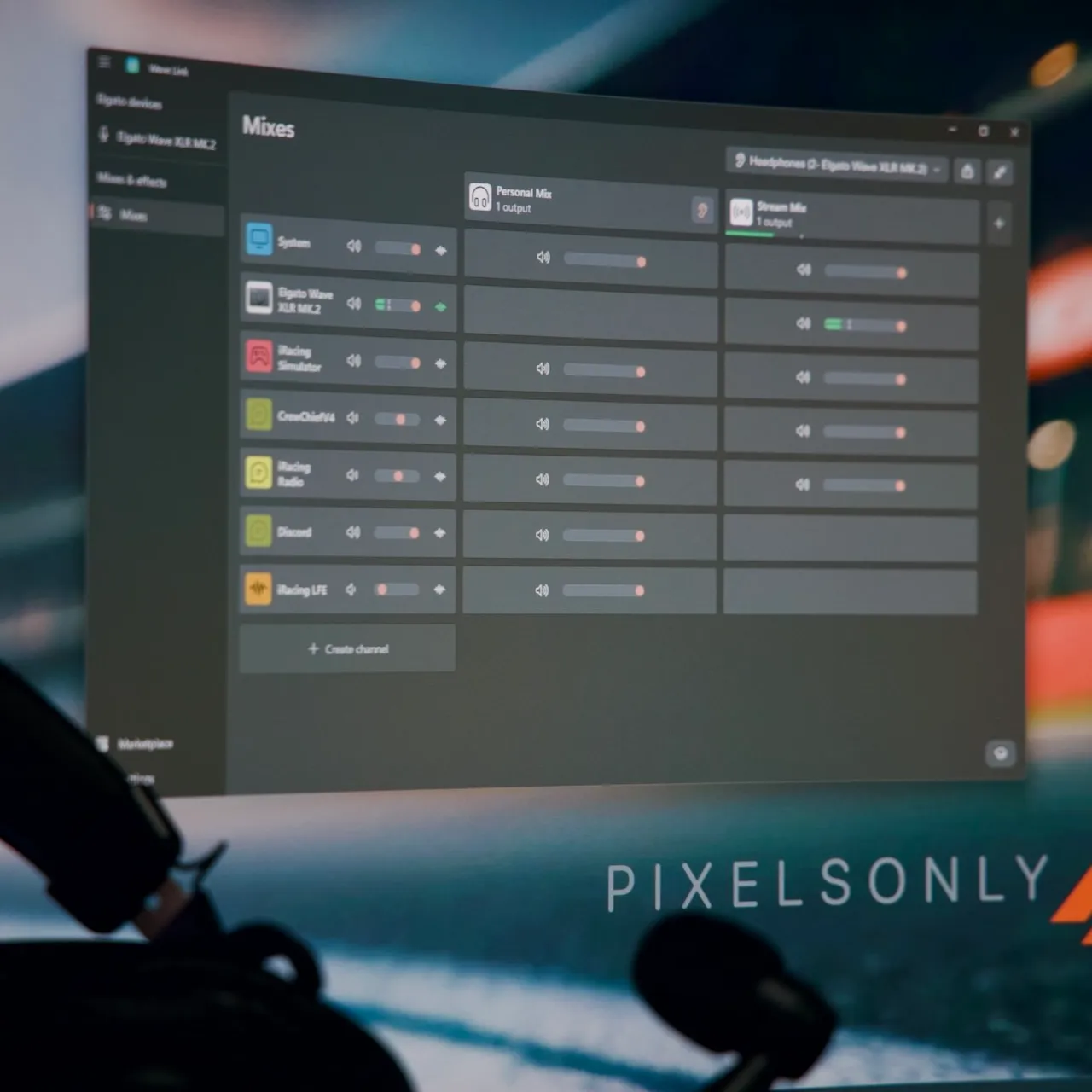
Wave Link auto-lists every audio-producing app, which is why an “iRacing Simulator” channel shows up in that screenshot. It sits unused: Windows’ own per-app output routing sends the sim straight to the spatialized device, so that channel never carries the surround bed described above.
A word on why my correction curve looks the way it does. The Audio-Technica BPHS1 is a closed-back broadcast headset with a boom microphone, built so a commentator can hear voices clearly for hours in a noisy booth (40 mm drivers, 65 ohm impedance, around $239 as of July 2026). To my ears it is mids-forward with a reserved top end, which is the wrong balance for hearing a tire let go. Be careful how much weight you put on that: Audio-Technica publishes a frequency range for the earcups but no curve, the speech tailoring people usually cite for this headset belongs to its microphone rather than its drivers, and user impressions of the earcups genuinely conflict. It is what I hear on my pair, and my correction is built against that, not against a measurement.
So my correction lifts the top two bands, 8 kHz and 16 kHz, by 2 to 3 dB, pulls 3 to 4 dB out of the 250 Hz band, with a smaller cut at 125 Hz, where engine drone masks tire noise, and adds a couple of dB back at the low end, 32 Hz and 64 Hz. Mids stay close to flat from 500 Hz to 2 kHz, because voice clarity is the one thing this headset already does perfectly.
Those numbers are one example of the method applied to one voice-tuned broadcast headset. Copied onto a bass-heavy gaming headset they would make things worse. The method is what transfers: identify your headphone’s character, correct its weaknesses in one place, verify against the on-track checklist.
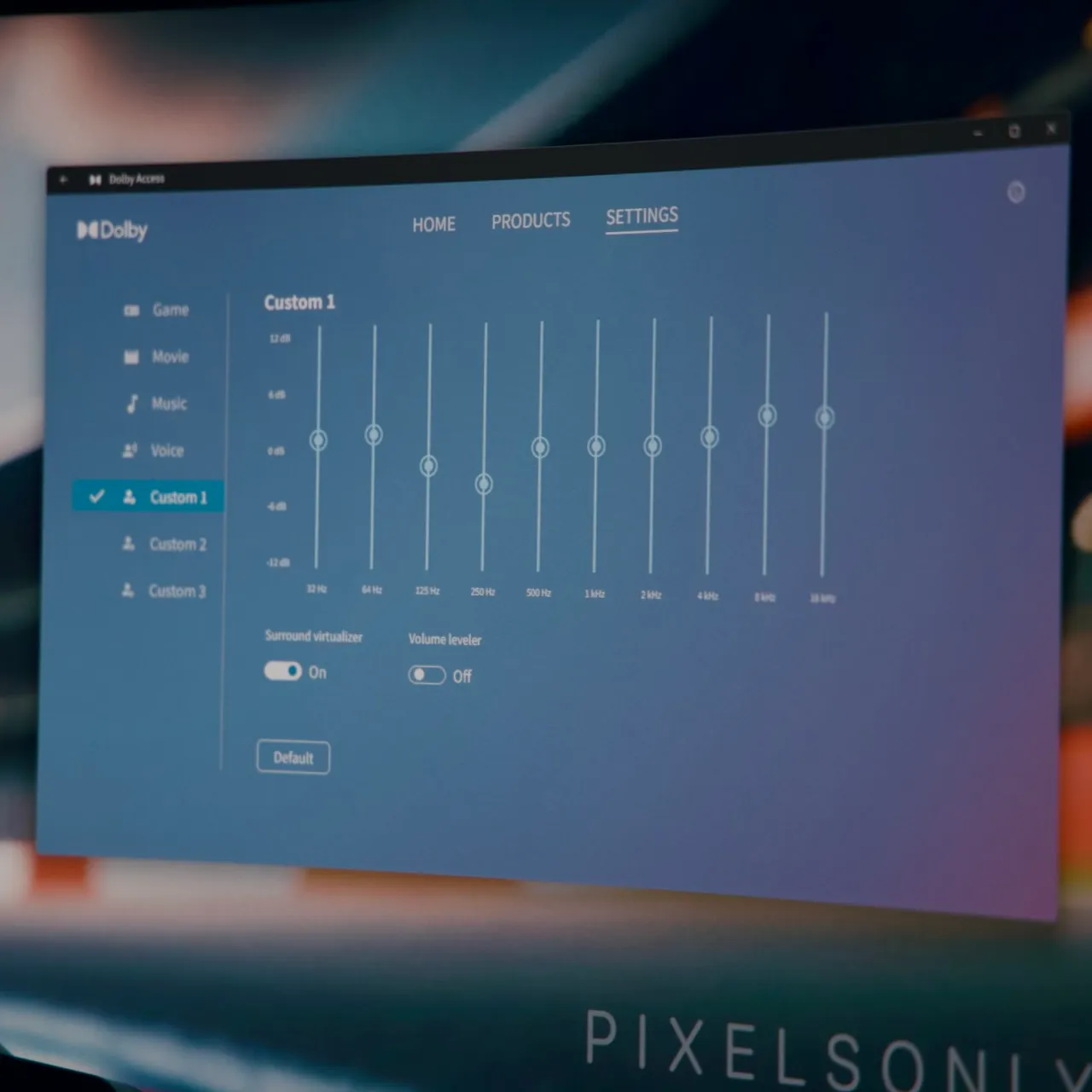
The rest of my session settings, for completeness: volume leveler off for driving, surround virtualization on, iRacing’s own mix sliders left flat so the correction EQ does the separation work, and the LFE channel tuned for transients with wheel slip and gear changes prioritized, engine and road texture buried. I also leave iRacing’s -10 dB LFE cut enabled. It exists for amplifiers with input limiters rather than for clipping, but dropping the output level gives my routed headphone channel useful headroom, and I would rather set the level with the mixer fader than run the source hot.
Where this landed
The validation session was an LMP3 around Road America. Nothing about the car or my hardware changed that evening, only the audio chain, and the difference was not subtle. Trail braking into Canada Corner I could hear the fronts starting to give up a beat before the wheel told me, and I was catching lock-ups from pitch alone with the brake markers still ahead of me.
Audio will not replace force feedback tuning or seat time. It is one more channel, and right now it is the one nearly everyone leaves at defaults. Give it the evening you gave your force feedback:
- Turn the spatializer on for your output device in Windows, then set
dimensions=3inapp.iniwith the sim closed. Leave the sim’s mix sliders flat and send it straight to that spatialized device rather than through a stereo mixer. - Give the spotter, voice chat, and any routed low-frequency feed their own mixer channels.
- Turn off every volume leveler you can find, in every layer.
- Pick one layer for correction EQ and flatten the EQ in all the others.
- Correct against your own headphones, one band at a time.
- Test each change at a track where you know every apex.
Your ears were already telling you where the grip is. Tune the chain so you can finally hear them.
RL